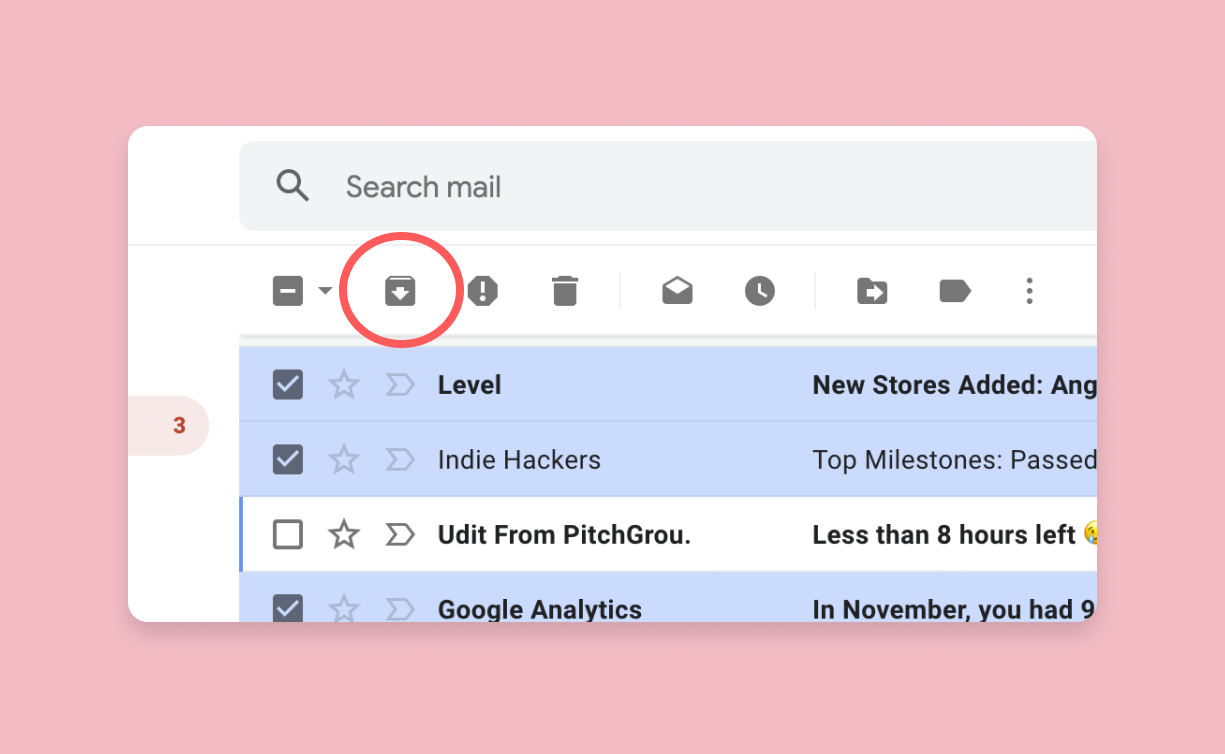
You just swiped right on an important email, or maybe you clicked 그 little cardboard box icon at the top of your desktop screen, and now that message is gone. Poof. It isn’t in the Trash. It isn’t in your Inbox. You’re probably frantic, scrolling through your sidebar looking for a label that says "Archive."
Here is the thing: there is no Archive folder.
Seriously. If you are looking for a specific folder named "Archive" in the Gmail sidebar, you can stop looking right now because it doesn’t exist. Google built Gmail on a system of labels, not traditional folders, and that distinction is exactly why so many people get lost. When you archive a message, you aren't moving it to a new home; you're just taking away its "Inbox" sticker and letting it float in the general population of your account.
Finding your hidden mail: Where is the archive folder in Gmail actually located?
To find your archived mail, you have to go to All Mail.
It sounds too simple to be true, but that’s the secret. The "All Mail" view is the master repository for every single thing in your account that hasn't been deleted or flagged as spam. Think of your Inbox as a curated waiting room. When you archive something, you’re just kicking it out of the waiting room and back into the massive library of your entire email history.
On a desktop, look at the left-hand sidebar where your labels like "Sent" and "Drafts" live. You might have to click "More" at the bottom of that list to see it, but All Mail is your destination. Once you click that, you'll see every archived message mixed in with your sent items and current inbox messages.
Navigating the mobile app maze
If you're on an iPhone or Android, the process is slightly different but follows the same logic. Tap the three horizontal lines (the hamburger menu) in the top left corner. Scroll down past your primary categories. You’ll see All Mail tucked in there. Tap it, and suddenly, those "missing" emails reappear.
It's kinda frustrating that Google doesn't just call it "Archive," but they've stuck to this nomenclature for nearly two decades. Honestly, it’s one of those things that makes sense to engineers but feels like a riddle to everyone else.
The Archive vs. Delete dilemma
Why even bother archiving?
Most people use the Archive button because they want a "Zero Inbox." It’s a psychological win. You see a clean screen, but you have the safety net of knowing you can find that receipt or flight confirmation three years from now. Deleting is permanent—or at least it becomes permanent after 30 days in the Trash.
Archiving is forever.
I’ve seen people lose sleep because they accidentally archived a work thread. Don't worry. Since the email is still "live" in your All Mail, it will still show up in search results. In fact, searching is usually faster than digging through the All Mail folder anyway. If you remember the sender’s name or a keyword, just type it into the top bar.
What happens when someone replies?
This is the best part about the archive function. If you archive a thread and the person suddenly replies two weeks later, that email will jump right back into your Inbox. It "resurrects" itself. This is why archiving is better than moving things to random custom labels. It keeps the clutter away until action is actually required.
Why the "Folder" concept is a lie
Gmail doesn't actually have folders. It’s all an illusion.
In a traditional email program like Outlook (the old versions, anyway), a file lives in one place. If it's in "Folder A," it can't be in "Folder B" unless you make a copy. Gmail uses Labels.
Every email you see in your Inbox actually has a hidden label called "Inbox." When you click Archive, you are performing one specific action: removing the "Inbox" label. Since the email no longer has that label, it disappears from your main view. But it still has the "All Mail" identity.
Pro tip for the power users
If you find yourself constantly digging through All Mail to find things you archived yesterday, you might want to change how you view your messages. You can actually create a "pseudo-archive" by creating a custom label called "Reference" or "Processed."
- Go to Settings (the gear icon).
- Click "See all settings."
- Go to "Labels" and create a new one.
- Instead of clicking Archive, move your emails to this label.
This gives you that physical "folder" feeling you might be missing from the old days of computing.
Identifying archived mail in search results
When you search for something in Gmail, the results include everything—inbox items, archived items, and sent items. How do you tell which ones are archived?
Look at the labels next to the subject line in the search results. If you see a little grey box that says "Inbox," it’s still in your main view. If there is no "Inbox" label, it’s archived.
It’s subtle. Maybe too subtle. But once you see it, you can’t unsee it.
Common mishaps: Did you actually archive it?
Sometimes people think they archived a message but they actually hit "Mute."
Muting is the Archive’s aggressive cousin. If you mute a conversation, it goes to All Mail, but it will not pop back into your inbox when someone replies. It stays hidden forever unless you specifically search for is:muted. If you are looking for an archived thread and can't find it in All Mail, try checking your Muted threads or your Trash. You might have clicked the wrong icon in a rush.
Actionable steps to master your archive
Stop looking for a folder. It’s a waste of time. Instead, embrace the "All Mail" reality and use these specific steps to stay organized:
- Use the Search Operator: Type
has:nouserlabels -in:inbox -in:sent -in:chat -in:draft -in:spam -in:trashinto your search bar. This is the "true" archive view. It shows you everything that doesn't have a label and isn't in your inbox. - Check "More" in the sidebar: If you can't see All Mail, go to your Gmail settings, click the "Labels" tab, and make sure "All Mail" is set to "Show."
- Swipe Actions: If you’re on mobile, go into your app settings and check your "Swipe actions." You can set a right-swipe to Archive and a left-swipe to Delete. This prevents accidental archiving.
- Undo is your friend: Every time you archive something, a small black toast notification appears at the bottom left (on desktop) or bottom center (on mobile). You have about 5 to 10 seconds to hit "Undo" before that email settles into the All Mail abyss.
The archive isn't a place; it's a state of being for your email. Once you stop hunting for a folder and start looking at All Mail, you’ll never lose a message again.